

gCMOB Not Connecting?: How to Fix Device Offline, Login Failed and Live View Errors
When gCMOB stops connecting, the fault is almost always in one of three places: your phone’s internet, the DVR or NVR’s internet, or the login saved in the app.
This guide shows you how to find which one in two minutes, then fix it step by step for every common gCMOB error.
Quick answer
Only your phone fails?
Update gCMOB, switch between Wi-Fi and mobile data, and turn off any VPN or data saver.
Offline on every phone?
The recorder has lost internet. Check its network cable, router and P2P status.
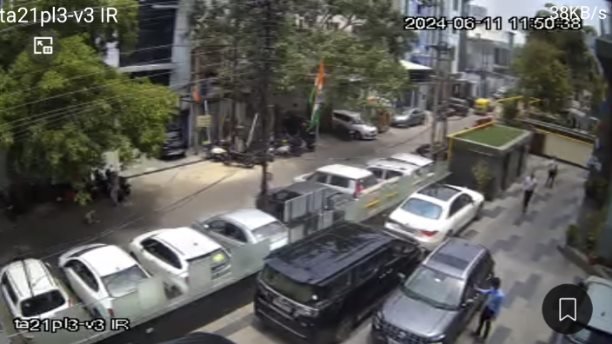
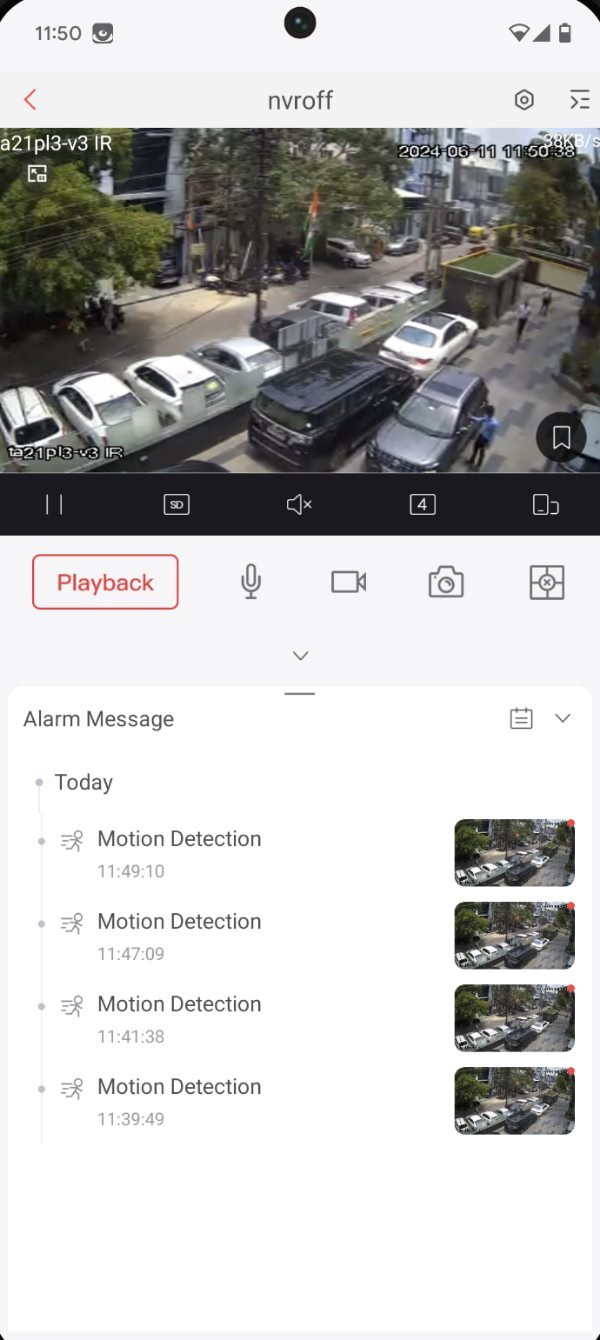
Find Where the Problem Is
Match what you see to the table below. It tells you which part to fix, so you don’t waste time resetting things that work.
| What you see | Where the problem is | Go to |
|---|---|---|
| Device shows Offline on every phone | The recorder or its router | Check P2P status |
| Works on home Wi-Fi, fails on mobile data | How the device was added (local IP) | Wi-Fi only fix |
| Works on one phone, not on another | That phone or its saved login | Quick checks |
| Login failed or user locked | The username or password saved in gCMOB | Login fixes |
| Live view keeps loading or stays black | Internet speed or stream quality | Live view fixes |
| No picture even on the recorder’s monitor | Camera, cable or power, not gCMOB | Check the camera wiring |
Look at the recorder's own monitor first. If the cameras show live video there, the cameras and the recorder are fine and the fault is in the network or the app.
Quick Checks: Fix Most Problems in 5 Minutes
Work through these in order. Most connection errors clear up before you reach the end of the list.
Update gCMOB
Install the latest version from Google Play (3.4.1, released June 2026). Older builds can stop connecting after server changes.
Restart everything
Close gCMOB fully and restart your phone. Then switch off the router and the DVR/NVR, wait two minutes and switch them back on.
Switch networks
Try Wi-Fi, then mobile data. If one works and the other doesn't, the problem is that network, not the recorder.
Turn off VPN and data saver
VPNs, ad blockers and Android's Data Saver can block video traffic. Allow gCMOB unrestricted mobile and background data.
Check the recorder's cable
The LAN port light on the DVR/NVR should blink. Reseat the network cable at both the recorder and the router.
Check the router's internet
Open a website on another device on the same router. If it has no internet, the recorder is offline too; contact your internet provider.
Fix gCMOB Errors by Message
Find the message gCMOB shows you, then follow the fixes from top to bottom.
Device shows Offline
Likely cause: The recorder has no internet, P2P is turned off, or the router blocks it.
- Check the P2P status on the DVR (steps below)
- Set the recorder’s DNS to 8.8.8.8 and 8.8.4.4
- Restart the router, then the recorder
Login failed / wrong password
Likely cause: The password was changed on the DVR but not in gCMOB, or it was typed wrong.
- Open Device Manager, edit the device and re-enter the username and password
- Remember passwords are case-sensitive
- Delete the device and add it again if editing doesn’t help
User locked
Likely cause: Too many wrong password attempts, often from another phone or PC that still has an old password.
- Stop all logins and wait, or restart the recorder (lock time varies by model)
- Update the password on every phone and PC that uses this recorder
- Forgot it? Reset it from the recorder’s own monitor; gCMOB can’t reset it
Network timeout / connection failed
Likely cause: Slow or unstable internet at either end, or a wrong IP address or port.
- Switch the camera to Sub/Extra stream
- For IP/Domain devices, check the public IP or DDNS name and the TCP port (often 37777)
- Test on a different network
Works on Wi-Fi, not on mobile data
Likely cause: The device was added by its local IP (such as 192.168.1.108), which only works at home.
- Add the device again by serial number (P2P / InstaOn)
- Or set up port forwarding and DDNS for IP/Domain access
- Allow mobile data for gCMOB in Android settings
Live view loading or black screen
Likely cause: The main stream is too heavy for the upload speed, or the camera has lost its feed.
- Switch to the Sub/Extra (SD) stream
- Open 4 channels instead of 16
- Check that the channel shows video on the recorder’s monitor
Playback: no recordings found
Likely cause: Hard disk error, no recording schedule, or the recorder’s date and time are wrong.
- Check the HDD status in gCMOB or the DVR menu
- Make sure the recording schedule is on
- Correct the recorder’s date, time and time zone
QR code won't scan
Likely cause: Low light, glare or a damaged sticker.
- Clean the label and add more light
- Type the serial number by hand
- Scan the QR code shown in the recorder’s P2P menu instead
No motion alerts
Likely cause: Notifications are off, or battery saving stops gCMOB in the background.
- Allow notifications for gCMOB in Android settings
- Turn off battery optimisation for gCMOB
- Make sure motion detection is enabled on the recorder
1How to Check P2P (InstaOn) Status on Your DVR or NVR
P2P lets gCMOB reach your recorder by its serial number without port forwarding. If P2P shows Offline on the recorder, gCMOB will show the device as Offline too.
1Open the network menu
- On the recorder’s monitor, right-click and open Main Menu.
- Go to Network (on some models Settings → Network).
- Menu names vary by model and firmware, but the options are the same.
2Check TCP/IP and DNS
- Make sure the IP address, subnet mask and gateway match your router (for example gateway 192.168.1.1).
- Set Preferred DNS to 8.8.8.8 and Alternate DNS to 8.8.4.4.
- If DHCP gives no address, set a static IP in your router’s range and click Apply.
3Turn on P2P
- Open the P2P (InstaOn) tab and tick Enable, then click Apply.
- Wait a few minutes. The status should change to Online.
- Still Offline? Untick Enable, Apply, tick it again, Apply, then restart the recorder.
4Add it again in gCMOB
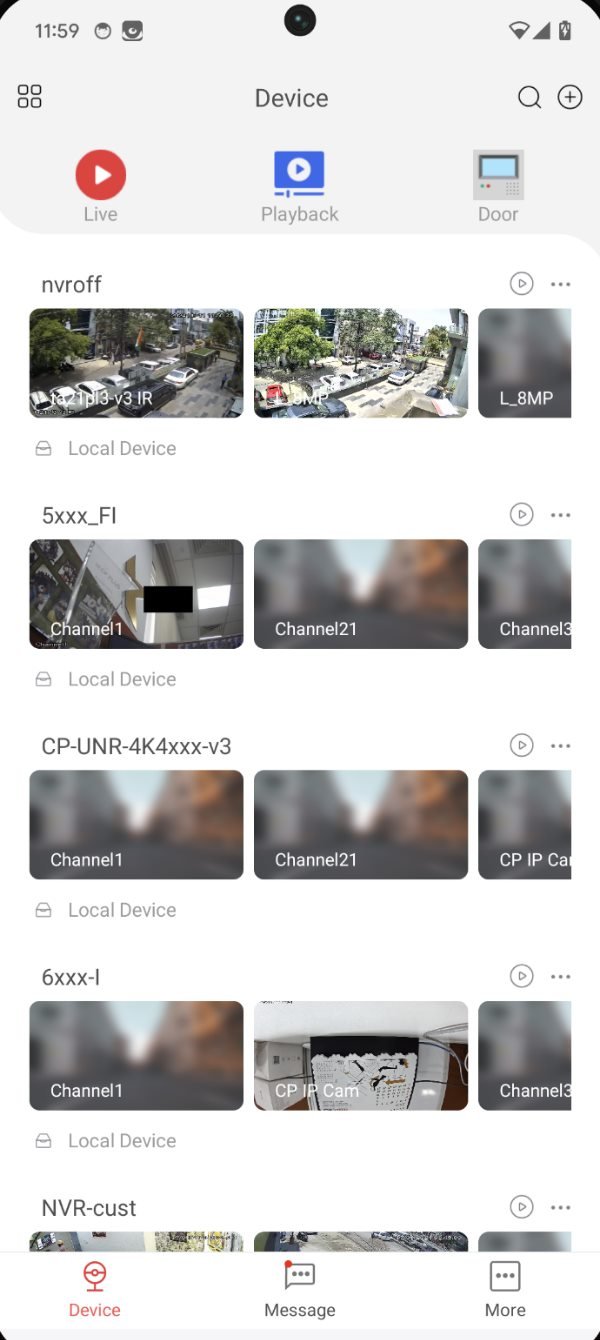
- In gCMOB, open Device Manager and tap +.
- Choose serial number (P2P / InstaOn) and scan or type the SN.
- Enter the username and password and tap Start Live Preview.
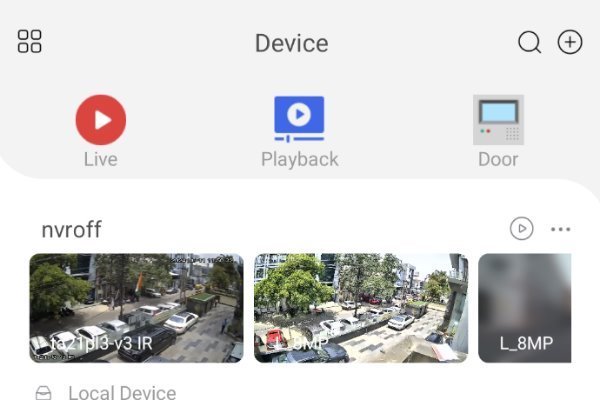
CP Plus notes that a recorder can take 5 to 10 minutes to show online after it connects, so give it time before trying the next fix.
If the recorder has no internet, gCMOB can still save the device, but it stays Offline until the recorder is back online.
P2P vs IP/Domain: What to Check
gCMOB connects in one of two ways. Check the one you used when you added the device.
| Check | P2P / InstaOn (serial number) | IP/Domain |
|---|---|---|
| How it connects | Through CP Plus servers using the serial number | Directly to your public IP or DDNS name |
| Port forwarding | Not needed | Needed: forward the TCP port (often 37777) |
| Works behind CGNAT | Yes | No; ask your provider for a public IP |
| Common failure | P2P shows Offline on the recorder | Public IP changed or port closed |
| Best for | Most homes and shops | Static IP or advanced setups |
Many broadband and fibre plans share one public IP between several customers (CGNAT). Port forwarding can't work on those connections, so use P2P by serial number instead.
Still Not Working? Contact CP Plus Support
If none of the fixes work, the recorder may need a firmware update or a repair. Send CP Plus these details so they can help faster.
What to send
- Recorder model and firmware version (Main Menu → System Info)
- Serial number from the sticker
- Your gCMOB version and phone model
- A screenshot of the error and of the P2P status screen
- The fixes you have already tried
How to contact
Email CP Plus at support@cpplusworld.com, the support address on the gCMOB Google Play listing.
You can also open More → Help Center inside gCMOB.
Frequently Asked Questions
Why does gCMOB say my device is offline?
The recorder can’t reach CP Plus’s servers. Check its internet, network cable and P2P status, then restart the router and the recorder.
Why does gCMOB work on Wi-Fi but not on mobile data?
The device was probably added by its local IP address, which only works on your home network. Add it again by serial number (P2P / InstaOn).
How long does a DVR stay user locked?
It depends on the model. Many recorders unlock after a waiting period or a restart. Fix the saved password on every phone first, or it will lock again.
Can I reset my DVR password from gCMOB?
No. CP Plus says the master password reset works only from the recorder’s own monitor.
Does gCMOB need port forwarding?
Not for devices added by serial number (P2P / InstaOn). Port forwarding is only needed for IP/Domain access.
Why is live view slow or black?
Usually the main stream is too heavy for the internet speed. Switch to Sub/Extra stream and open fewer channels at once.
Will reinstalling gCMOB fix connection problems?
Only if the app itself is the problem. Export your device list first (More → Export Device), or keep your serial numbers and passwords ready.
Does gCMOB work with other brands of DVR?
CP Plus’s FAQ says gCMOB supports CP Plus devices. Recorders from other brands usually need their own app.
Want to watch your cameras on a computer?
See how to use gCMOB on Windows with CP Plus KVMS Pro or BlueStacks.