

gCMOB Login & Password Reset: Fix Login Failed and Reset a Forgotten DVR or NVR Password
gCMOB uses two different logins, and most password problems come from mixing them up: the device login (your DVR, NVR or camera’s username and password) and the optional gCMOB account in the app.
This guide shows which one you need, how to fix “login failed”, and how to reset a forgotten recorder password without a factory reset.
Quick answer
Forgot the DVR/NVR password?
Use Forgot Password on the recorder and scan its QR code with the AIL-Master PWD app.
Login failed in gCMOB?
The password saved in the app is probably old. Edit the device and enter the current one.
Which Password Do You Need?
Check which login is failing before you reset anything. Each one is reset in a different place.
| Login | What it opens | Where it was set | How to reset it |
|---|---|---|---|
| Device login (DVR, NVR or camera) | Live view, playback and settings of that recorder | On the recorder during first setup | Forgot Password + AIL-Master PWD |
| gCMOB account (optional) | Extra services in the app (More → Sign In) | In gCMOB when you registered | Password recovery on the gCMOB sign-in screen, or CP Plus support |
| KVMS Pro login (PC) | The KVMS Pro software on your computer | On first launch of KVMS Pro | The security questions you set in KVMS Pro |
You don't need a gCMOB account to watch your cameras. Devices added by serial number or IP work with just the device username and password.
Fix gCMOB Login Errors
Find the message you see in gCMOB, then follow the fixes from top to bottom.
Login failed / wrong password
Likely cause: The recorder’s password was changed, but gCMOB still has the old one saved.
- Open Device Manager and edit the device
- Re-enter the username and the current password
- Save and tap Start Live Preview
User locked
Likely cause: Too many wrong attempts, often from another phone or PC that still uses an old password.
- Stop all logins and wait, or restart the recorder
- Update the password on every phone and PC
- Then log in once with the correct password
Forgot the username
Likely cause: Most CP Plus recorders use admin as the main username.
- Try admin first
- Check the user list in the recorder’s Account settings
- Ask your installer if they created a different user
Password too weak
Likely cause: gCMOB 3.4.1 added a stronger password policy when you change a device password.
- Use at least 8 characters
- Mix upper and lower case letters, numbers and a symbol
- Avoid admin, 123456 or your phone number
Can't sign in to the gCMOB account
Likely cause: Wrong email or phone number, or the account password was forgotten.
- Check you are using the same email or number you registered with
- Use password recovery on the sign-in screen
- Remember: cameras still work without this account
Login works at home, not outside
Likely cause: This is a connection problem, not a password problem.
- Add the device by serial number (P2P)
- Check that P2P shows Online on the recorder
- See our gCMOB not connecting guide
1Reset a Forgotten DVR or NVR Password
CP Plus’s official AIL-Master PWD app resets a recorder’s admin password with a QR code and a one-time code, without a factory reset or a technician visit.
1Open Forgot Password
- On the recorder’s monitor (or its web page), open the login screen.
- Click Forgot Password. A QR code appears on the screen.
2Scan with AIL-Master PWD
- Install AIL-Master PWD by Aditya Infotech Ltd from Google Play.
- Open it and scan the QR code shown on the recorder.
3Get the one-time code
- An 8-character code is sent to the recovery email or mobile number saved when the recorder was set up.
- Check your spam folder if the email doesn’t arrive.
4Set a new password
- Enter the code on the recorder and create a new strong admin password.
- Then update the password in gCMOB (steps below).
This only works if a recovery email or mobile number was saved during setup. If not, contact CP Plus support or your installer.
gCMOB itself can't reset a forgotten device password. CP Plus says the master password reset works only from the recorder's own monitor.
2Update the Password Saved in gCMOB
After you change or reset the recorder’s password, update it in gCMOB on every phone, or the app will keep failing and may lock the user again.
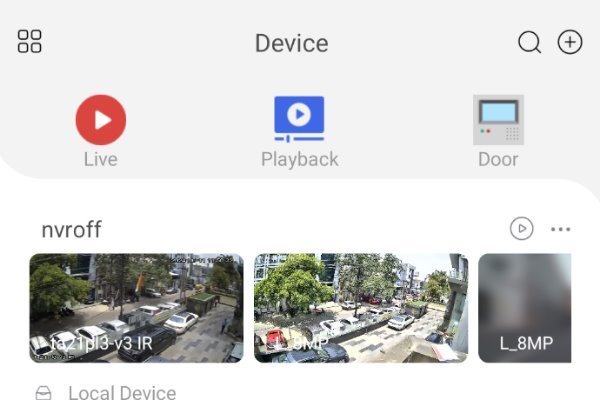
1Open Device Manager
- Open gCMOB and go to the Device tab.
- Find the recorder whose password changed.
2Edit the device
- Tap the ⋯ (more) button next to the device.
- Choose to edit the device details.
3Enter the new password
- Type the current username and the new password.
- Passwords are case-sensitive; check every character.
4Save and test
- Save the changes.
- Tap Start Live Preview to confirm it connects.
Keep Your CCTV Login Safe
A few minutes now saves you a locked recorder later.
Use a strong password
At least 8 characters with letters, numbers and a symbol. Don't reuse your Wi-Fi or email password.
Save a recovery email
Add a recovery email or mobile number in the recorder's account settings now, so AIL-Master PWD can reset it later.
Give others their own login
Create a separate user with limited rights for family or staff instead of sharing the admin password.
Still locked out? Email CP Plus at support@gcmob.net with the recorder model, serial number and a photo of the login screen.
Frequently Asked Questions
What is the default gCMOB username and password?
gCMOB has no default password of its own. It uses your recorder’s login; the username is usually admin, and newer recorders make you create the password during first setup.
Do I need a gCMOB account?
No. You can add and watch devices without signing in. The account (More → Sign In) is only for extra services.
Can I reset my DVR password from gCMOB?
No. Use Forgot Password on the recorder with the AIL-Master PWD app, or reset it from the recorder’s own monitor.
What if I don't have access to the recovery email?
Contact CP Plus support or the installer who set up the recorder. Without the recovery email or mobile number, the reset needs their help.
Why does gCMOB say login failed after I changed the password?
gCMOB still has the old password saved. Edit the device in Device Manager and enter the new one.
How long does a recorder stay user locked?
It depends on the model. Wait, or restart the recorder, and update the saved password on every phone first so it doesn’t lock again.
Is the gCMOB password the same as KVMS Pro?
The recorder’s username and password are the same in both. KVMS Pro also has its own software password that you set on first launch.
What is AIL-Master PWD?
It is Aditya Infotech’s official app for resetting a forgotten admin password on CP Plus DVRs, NVRs and IP cameras using a QR code and a one-time code.
Logged in but cameras still offline?
A correct password won't help if the recorder can't reach the internet. Follow our connection guide.