

gCMOB for Smart TV: Watch CP Plus Cameras on Android TV, Fire TV, Samsung and LG
gCMOB isn’t offered in the Play Store on Android TV, but you can still watch your CP Plus cameras on a big screen. There are four ways: connect the recorder to the TV with HDMI, mirror gCMOB from your phone, install the gCMOB APK on an Android TV, or sideload it on a Fire TV Stick.
This guide shows which method works on your TV and how to set it up step by step.
Quick answer
Want it on the TV all day?
Connect the DVR or NVR straight to the TV with an HDMI cable. No app or internet needed.
Checking from the sofa?
Mirror gCMOB from your phone, or install the APK on an Android TV.
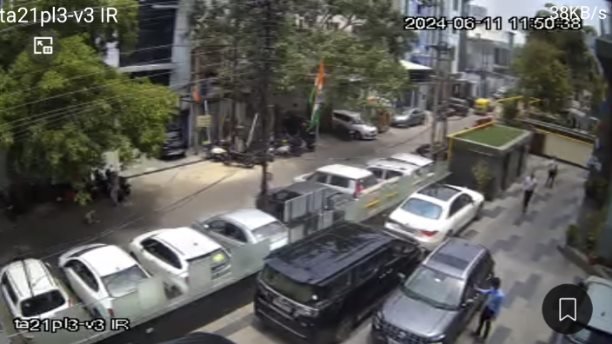
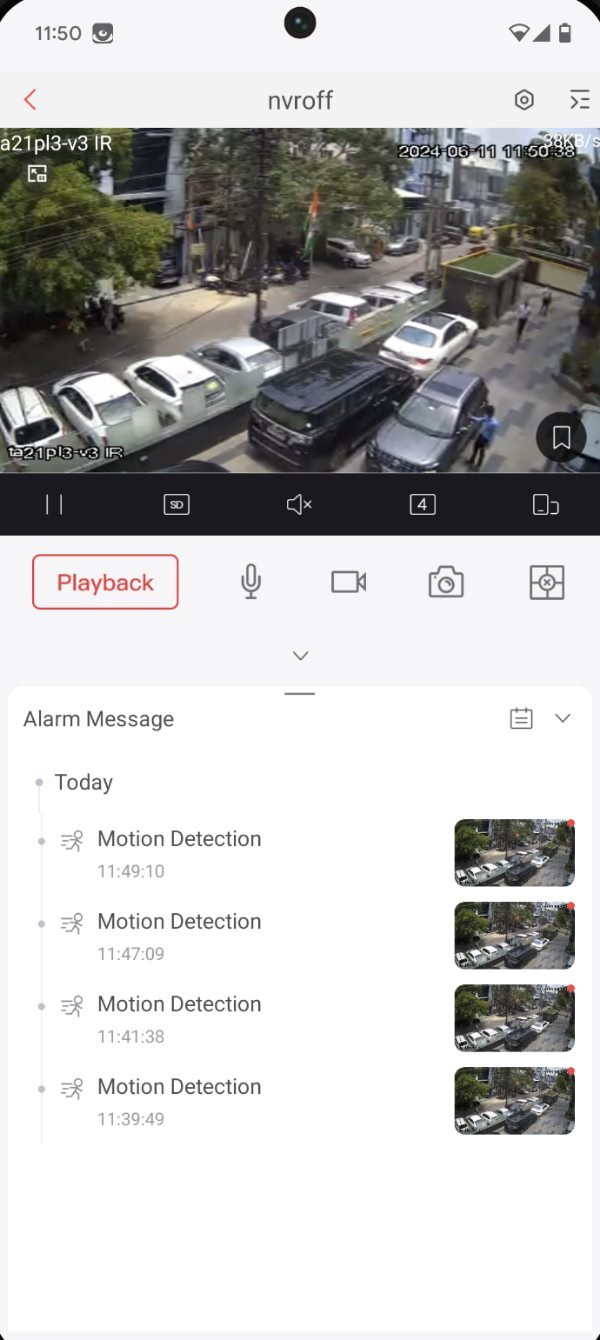
Which Method Should You Use?
Pick HDMI for a TV that shows cameras all day; pick mirroring or the app for a quick look from the sofa.
| Method | Works on | Best for | Limits |
|---|---|---|---|
| DVR/NVR HDMI cable | Any TV with an HDMI port | 24/7 view in a shop, office or home | TV must be near the recorder |
| Screen mirroring | Most smart TVs | Quick checks from your phone | Phone must stay on; slight delay |
| gCMOB APK on Android TV | Android TV and Google TV | Live view without a phone | Not in the TV Play Store; needs a mouse |
| gCMOB on Fire TV Stick | Amazon Fire TV devices | Any TV with a Fire TV Stick | Sideload only; not officially supported |
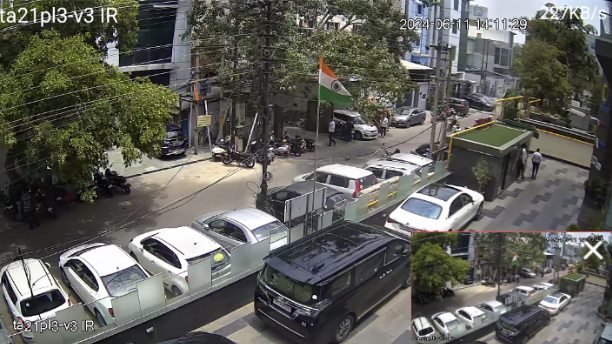
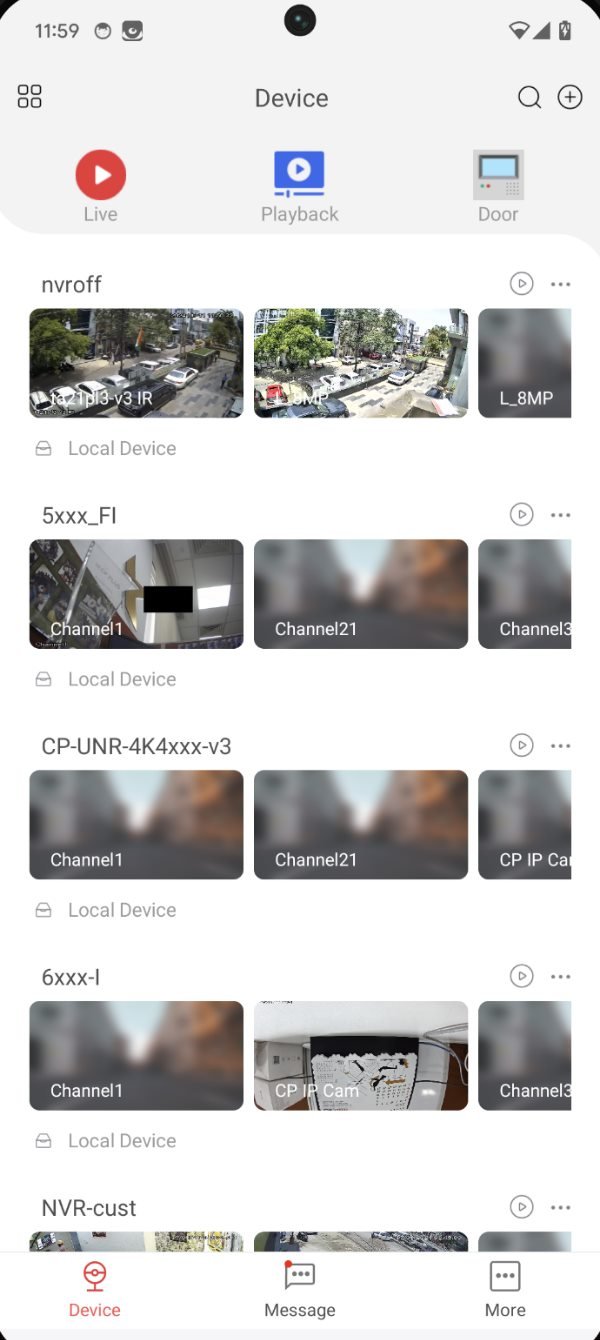
What Works on Your TV
Find your TV type below. If it can’t install apps, mirroring or HDMI still works.
| TV or device | Can it install gCMOB? | Best method |
|---|---|---|
| Android TV / Google TV (Sony, TCL, Xiaomi, OnePlus and others) | Yes, as an APK (not from the TV Play Store) | Install the APK or mirror |
| Samsung smart TV (Tizen) | No | Smart View mirroring or HDMI |
| LG smart TV (webOS) | No | Screen Share mirroring or HDMI |
| Amazon Fire TV Stick / Fire TV | Yes, by sideloading | Sideload with Downloader |
| Chromecast or Google TV Streamer | Cast from your phone | Cast your screen |
| Apple TV | No (gCMOB is Android only) | AirPlay mirroring from iCMOB on an iPhone |
| Old TV without smart features | No | HDMI or an Android TV box |
1Connect the DVR or NVR to the TV with HDMI
This is the simplest and most reliable way. The recorder shows its own live view on the TV, so it keeps working even when the internet or the app is down.
1Plug in the cable
- Connect an HDMI cable from the recorder’s HDMI port to a free HDMI port on the TV.
- Older recorders and TVs may use VGA instead.
2Pick the TV input
- Press Source or Input on the TV remote.
- Choose the HDMI port you used. The recorder’s screen appears.
3Match the resolution
- Open the recorder’s Main Menu and find the display or output resolution.
- Choose 1920×1080 for most TVs. A wrong setting can show a black screen.
4Choose the layout
- Right-click on the live view and pick a 1, 4, 9 or 16 camera split.
- Many recorders can also cycle cameras automatically (Tour).
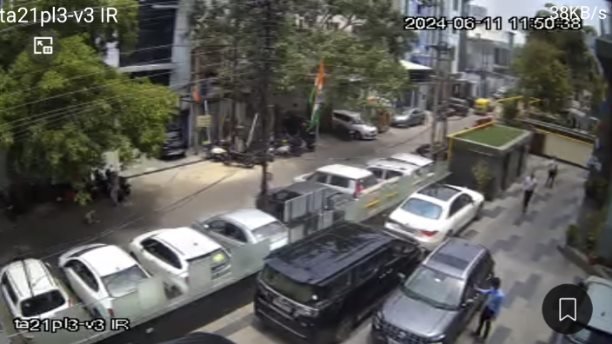
TV far from the recorder? An HDMI extender that runs over a network cable can carry the picture to another room.
Showing the same camera grid all day can cause burn-in on OLED TVs. Use an LED TV or a monitor for 24/7 viewing.
2Mirror gCMOB from Your Phone to the TV
Screen mirroring works on almost every smart TV, including Samsung and LG, and needs no install on the TV.
1Use the same Wi-Fi
- Connect the phone and the TV to the same Wi-Fi network.
- Turn on screen mirroring on the TV if it has a setting for it.
2Start mirroring
- On Android, open Quick Settings and tap Smart View, Cast or Screen Cast (the name depends on the phone).
- Pick your TV from the list.
3Open gCMOB
- Open gCMOB and start Live Preview.
- Turn the phone sideways for a full-screen picture.
4Smooth the video
- If the picture stutters, switch the camera to Sub/Extra stream.
- Keep the phone on charge for long viewing.
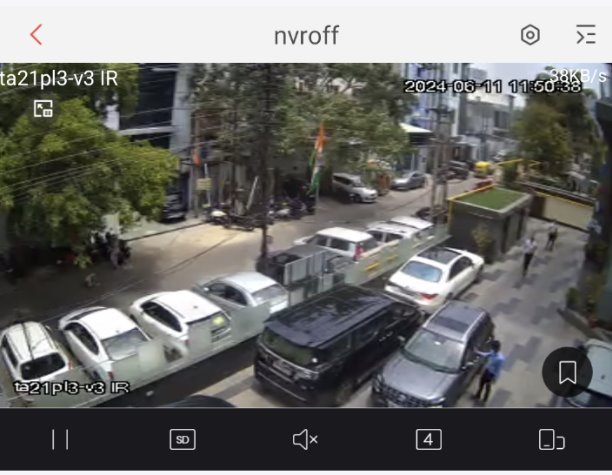
On an iPhone, use iCMOB and open Control Center → Screen Mirroring to show it on an AirPlay TV or Apple TV. See our iCMOB guide.
3Install gCMOB on Android TV or Google TV
gCMOB isn’t listed in the TV’s Play Store, but most Android TVs can install the phone APK. It runs like a phone app, so use a mouse for easier control.
1Allow unknown apps
- On the TV, open Security & restrictions → Unknown sources (under Device Preferences or Apps in Settings, depending on the TV).
- Allow your file manager. On Google TV, first turn on Developer options in Settings → System → About.
2Copy the APK
- Download the gCMOB APK on a computer from a trusted source such as our download page.
- Copy it to a USB pendrive and plug it into the TV.
3Install gCMOB
- Open the pendrive in the TV’s file manager.
- Select the APK and choose Install, then Open.
4Add your cameras
- Connect a USB or Bluetooth mouse, or an air-mouse remote.
- Add the device by typing its serial number; the TV has no camera to scan the QR code.
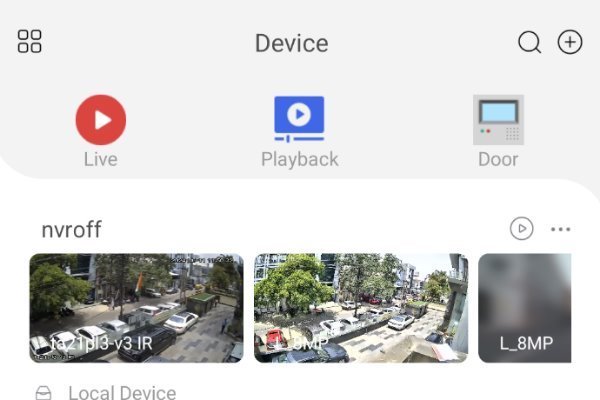
gCMOB needs Android 5.0 or newer and an ARM processor, which nearly all Android TVs have. If it won't install, see our gCMOB APK not installing guide.
gCMOB is built for touch screens, so some buttons are hard to reach with a TV remote. A mouse makes every menu work.
4Sideload gCMOB on a Fire TV Stick
Fire TV runs on Android, so the gCMOB APK can be sideloaded. It isn’t officially supported, so test it before relying on it.
1Turn on Developer options
- Go to Settings → My Fire TV → About.
- Select the device name seven times until Developer options appear.
2Install Downloader
- Search for Downloader in the Amazon Appstore and install it.
- In Developer options → Install unknown apps, turn Downloader on.
3Download gCMOB
- Open Downloader and enter the address of the gCMOB APK from a trusted source.
- Choose Install when the download finishes.
4Set it up
- Open gCMOB and add your devices by serial number.
- Delete the APK file afterwards to free up storage.
The Fire TV remote has no pointer, so some gCMOB screens can be hard to use. If that's a problem, mirroring from your phone is easier.
Tips for a Better Picture on TV
A big screen shows every stutter, so tune the stream for the network you’re on.
Use the right stream
On Wi-Fi or mobile data, use Sub/Extra stream. Use Main stream only on a fast home network for the sharpest picture.
Open fewer cameras
A 4-camera split loads faster and looks sharper on a TV than 16 small tiles.
Put the TV on a strong signal
Use a network cable or 5 GHz Wi-Fi for the TV or streaming stick to avoid buffering.
Frequently Asked Questions
Is there a gCMOB app for smart TV?
Not in the TV app stores. You can install the phone APK on Android TV or Fire TV, or mirror gCMOB from your phone to any smart TV.
Can I watch CP Plus cameras on a Samsung TV?
Yes. Samsung TVs can’t install gCMOB, so use Smart View screen mirroring from your phone, or connect the recorder with HDMI.
Can I use gCMOB on an LG TV?
Not as an app. Mirror your phone with LG’s Screen Share, or connect the recorder to the TV with HDMI.
Does gCMOB work on a Fire TV Stick?
It can be sideloaded with the Downloader app, but it isn’t officially supported and the remote can make some screens hard to use.
Why can't I control gCMOB with the TV remote?
gCMOB is designed for touch screens. Connect a USB or Bluetooth mouse, or use an air-mouse remote.
Can I watch cameras on the TV without internet?
Yes, with an HDMI cable from the recorder to the TV. Mirroring and the app need a working network connection to the recorder.
How many cameras can I see on the TV at once?
Through HDMI, the recorder can show all its channels in a split view. In gCMOB you can split up to 16 cameras.
Is it safe to install the gCMOB APK on my TV?
Yes, if the file is the original app from a trusted source. Avoid modified APKs, and turn off unknown sources after installing.
Prefer a computer screen?
Use gCMOB on Windows with CP Plus KVMS Pro or BlueStacks.