

gCMOB for PC: How to Use gCMOB on Windows 10/11 and Laptops
gCMOB has no native Windows version, but you can still watch your CP Plus cameras on a PC or laptop. There are two working ways: install CP Plus’s free desktop software, KVMS Pro, or run the gCMOB Android app inside an emulator such as BlueStacks.
This guide covers both methods with system requirements, exact setup steps, and fixes for the errors people hit most often.
Quick answer
KVMS Pro
Use it if you have many cameras or want to record to your PC.
BlueStacks + gCMOB
Use it if you want the same app interface you already use on your phone.
What Is gCMOB for PC?
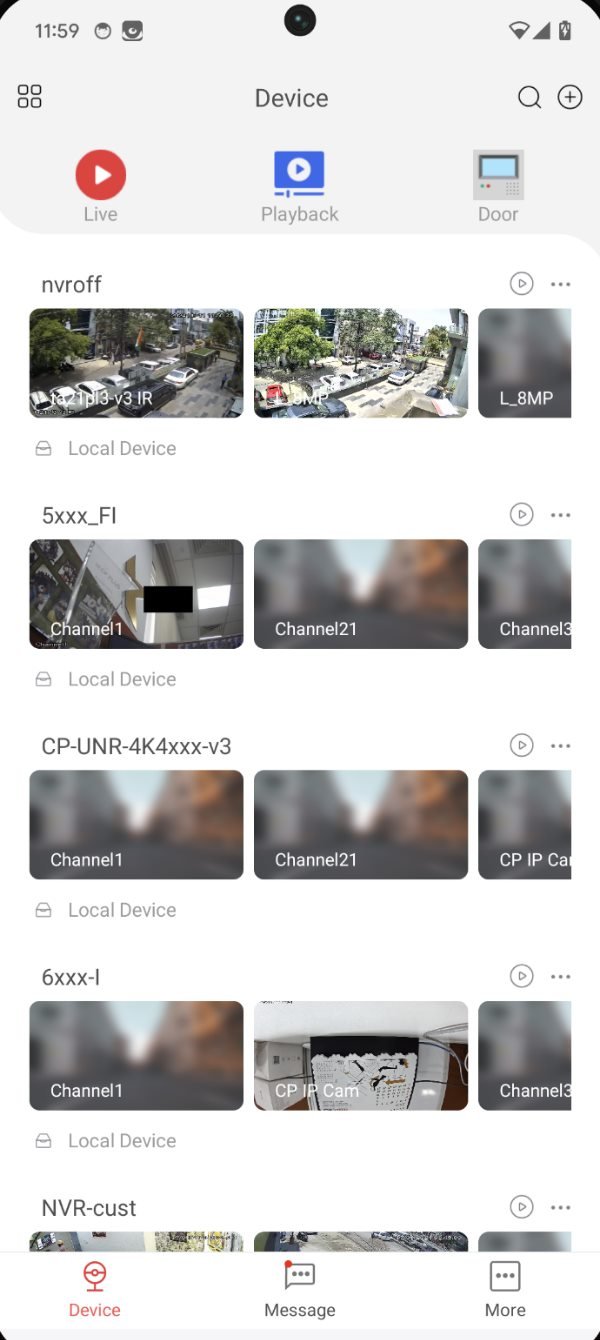
gCMOB is CP Plus’s Android app for DVRs, NVRs, IP cameras and video door phones. The latest version is 3.4.1, released in June 2026 under Aditya Infotech Ltd. When people search “gCMOB for PC”, they need one of two things:
- KVMS Pro: CP Plus’s free Central Management System for Windows, the desktop partner of gCMOB. It adds PC-only features such as recording to the computer, e-map and video wall.
- gCMOB in an emulator: the real Android app running in a window on Windows, with the same screens as your phone.
With either method you can:
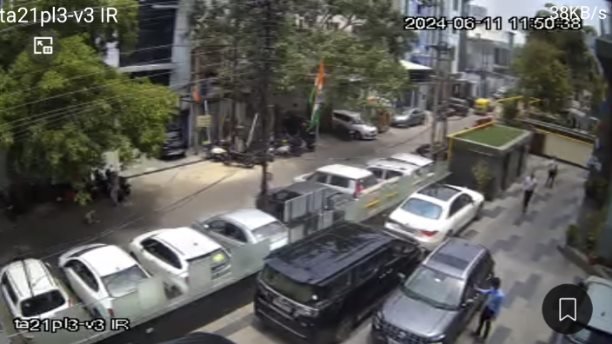
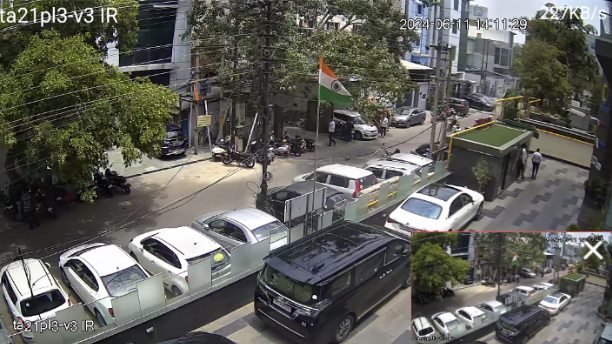
Live View
Watch live video from several channels at once (gCMOB splits up to 16; KVMS Pro manages up to 64 channels)
Playback
Play back recordings stored on the DVR or NVR hard disk
PTZ Control
Control PTZ cameras and use digital zoom
Two-Way Talk
Use two-way talk on cameras that support audio
Device Health
Check device health, such as HDD status and online/offline state
What’s new in gCMOB 3.4.1
- WhatsApp chatbot support built into the app
- A stronger password policy when you change a device password
- Faster device loading in Live View
Source: gCMOB 3.4.1 release notes, KVMS Pro channel limit.
KVMS Pro vs BlueStacks: Which Should You Use?
Pick KVMS Pro for more than 16 cameras or PC recording; pick BlueStacks for the familiar gCMOB app on a single laptop.
| Feature | KVMS Pro | BlueStacks + gCMOB |
|---|---|---|
| Best for | Shops, offices, many cameras | Home users who know the gCMOB app |
| Live channels | Up to 64 | Up to 16 per screen |
| Add device by | IP/Domain, Auto Search | Serial number (InstaOn/P2P), IP/Domain |
| Record to the PC | Yes, with Storage Service | No, plays back from the DVR only |
| E-map and video wall | Yes | No |
| Disk space | About 127 MB to install | About 5 GB |
| Interface | Desktop software | Same as the gCMOB phone app |
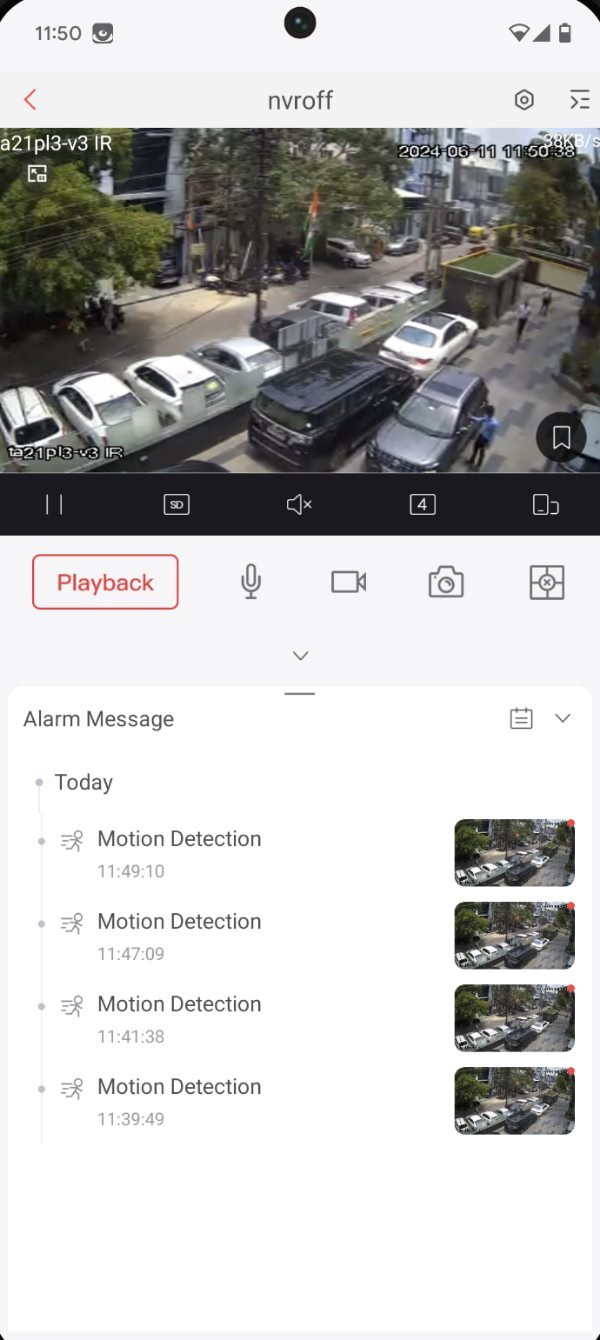
gCMOB for PC System Requirements
Both methods run on an ordinary Windows laptop. The emulator method needs more RAM and disk space because it runs a full Android system.
Windows
- KVMS Pro: Windows 7, 8, 10 and 11
- BlueStacks: Windows 7 or later; Windows 10 or 11 recommended
RAM
- KVMS Pro: Not published by CP Plus; 8 GB is safe for 16+ live channels
- BlueStacks: At least 4 GB
Disk Space
- KVMS Pro: Installer about 127 MB, plus space for any recordings saved to the PC
- BlueStacks: 5 GB free for BlueStacks, plus about 130 MB for gCMOB
Processor & Graphics
- KVMS Pro: Any modern Intel or AMD CPU
- BlueStacks: Intel or AMD CPU, up-to-date graphics drivers, virtualization turned on in BIOS
Account
- KVMS Pro: Administrator rights to install
- BlueStacks: Administrator rights, plus a Google account for the Play Store
Network
- KVMS Pro: PC must reach the DVR/NVR on the same network, or over the internet via P2P or port forwarding
- BlueStacks: Same as KVMS Pro
Windows 7 and 8 users can only run BlueStacks 5.21.300 or older. gCMOB itself needs Android 5.0 or newer, which every current BlueStacks instance provides.
Sources: BlueStacks 5 requirements, KVMS Pro 2.01 file size, KVMS Pro Windows versions, gCMOB Android requirement.
1Method 1: Use gCMOB on PC with CP Plus KVMS Pro
KVMS Pro is the best choice for shops, offices and homes with many cameras. It is free, runs natively on Windows and can record footage straight to your PC.
1Step 1: Download KVMS Pro
- Open cpplusworld.com and go to the Support or Downloads section, then Software.
- Download KVMS Pro. Pick KVMS Pro Lite for a small home setup, or the STQC build if your recorder is STQC-certified.
- Extract the downloaded ZIP file to a folder.
 KVMS Pro
2Step 2: Install KVMS Pro
- Right-click the setup file and choose Run as administrator, then click Yes.
- Click Next on the welcome screen.
- On the component screen, keep KVMS Pro selected. Tick Storage Service only if you want to save recordings on this PC.
- Wait for the installation to finish, keep Run KVMS Pro ticked and click Finish.
3Step 3: Set up your KVMS Pro login
- On first launch, create a password for KVMS Pro. This is the software’s own password, not your DVR password.
- Tick Auto-login only if nobody else uses this PC.
- Choose and answer the security questions. You need them to reset the password later, so note your answers.
4Step 4: Add your DVR or NVR
- Open Devices and click +Add. If the PC is on the same network as the recorder, Auto Search can find it for you.
- Choose the IP/Domain method and fill in the fields:
- Device name: any name, such as Shop DVR
- IP or domain: the recorder’s local IP, public IP or DDNS address
- Port: the recorder’s TCP port, commonly 37777 on CP Plus recorders (check Main Menu → Network on the DVR)
- Username and password: the same login you use in gCMOB on your phone
- Click Add. The device status should turn Online.
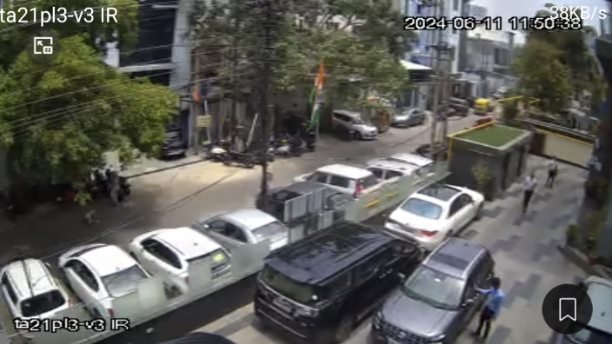
5Step 5: Watch live view
- Click Live View.
- Expand the Default Group in the device list.
- Double-click your device to open all its cameras, then choose a 1, 4, 9 or 16 screen layout.
6Step 6: Play back recordings
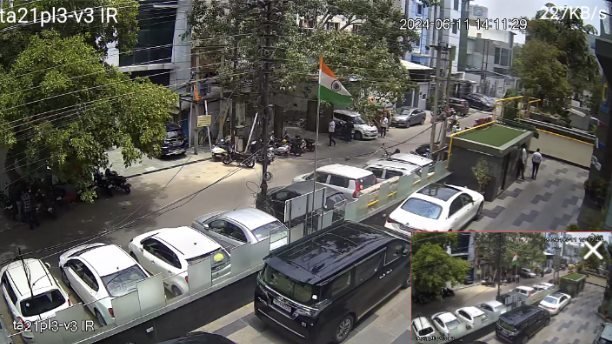
- Open Playback and select the device and channel.
- Pick the date and record type, then click Search.
- Click on the timeline to start playback, and use the download button to save a clip to your PC.
Avoid "repack" or cracked download sites. KVMS Pro is free, so there is no reason to take a modified file.
Viewing from outside your home or office by IP needs the TCP port forwarded on your router. If your KVMS Pro version offers a serial number (P2P) option, use that instead and skip port forwarding.
2Method 2: Run the gCMOB App on PC with BlueStacks
This method runs the real gCMOB Android app on Windows. Choose it if you want the exact screens, InstaOn support and PTZ controls you already know from your phone.
1Step 1: Install BlueStacks
- Download BlueStacks from the official site, bluestacks.com.
- Run the installer and approve the administrator prompt.
- Wait for the first launch to finish; it can take a few minutes.

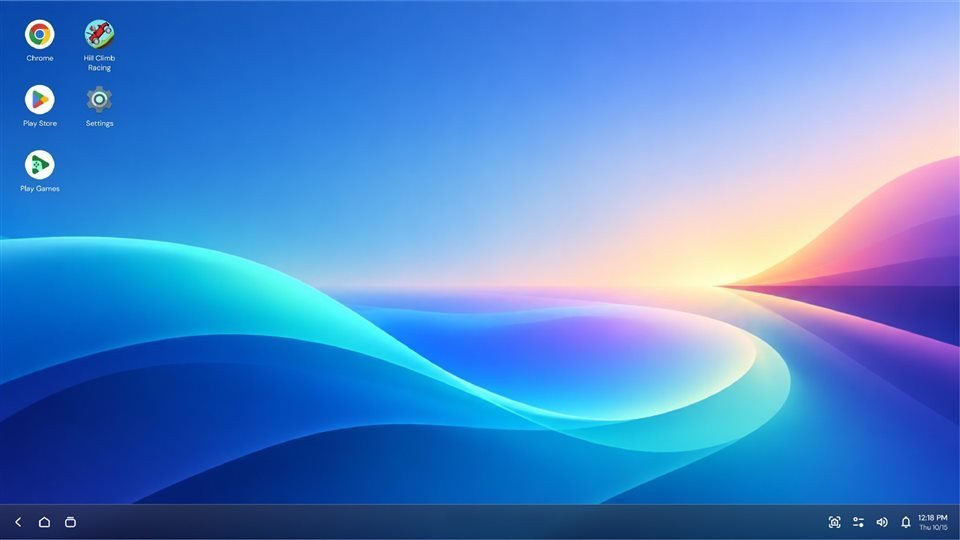
2Step 2: Install gCMOB from Google Play
- Open the Play Store inside BlueStacks and sign in with your Google account.
- Search for gCMOB and check that the developer is Aditya Infotech Ltd.
- Click Install, then open the app.
3Step 3: Add your DVR, NVR or camera
On a phone you would scan the QR code on the recorder. A PC usually has no rear camera, so type the serial number instead.
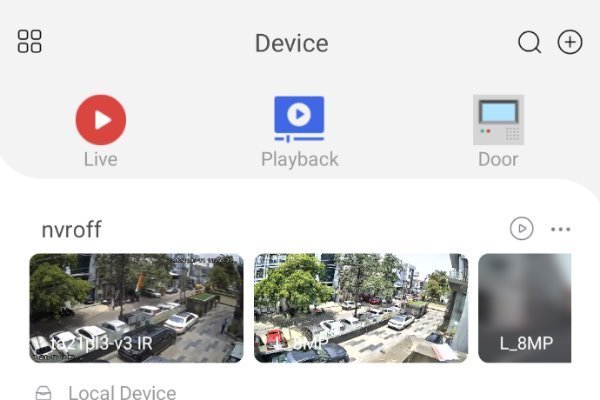
- In gCMOB, open Device Manager and tap +.
- Choose to add the device by serial number (P2P / InstaOn) or by IP/Domain.
- For serial number, copy the SN printed on the sticker under the recorder, or from its network or P2P menu.
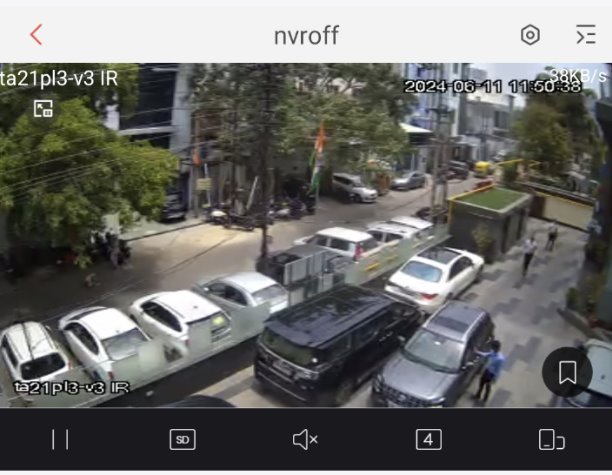
- Enter the device username and password, save, and tap Start Live Preview.
4Step 4: Tune BlueStacks for CCTV viewing
- Switch BlueStacks to full screen or landscape for a larger view.
- If video stutters, open BlueStacks Settings → Performance and give it 4 CPU cores and 4 GB RAM.
- For slow internet, switch the camera to Sub/Extra stream in gCMOB; it uses far less bandwidth.
If BlueStacks warns that virtualization is off, turn on Intel VT-x or AMD-V in your PC's BIOS. Live view runs much smoother with it on.
Use the Play Store rather than a loose APK file so the app updates itself automatically.
gCMOB for Mac
There is no gCMOB app for macOS, but Mac users still have four options:
KVMS Pro for Mac
Some listings show an Intel-only Mac build. On Apple Silicon Macs it runs through Rosetta 2, which Apple is phasing out, so check cpplusworld.com for a current macOS installer first.
BlueStacks Air
The BlueStacks app for Apple Silicon Macs can run Android apps such as gCMOB.
Windows in a virtual machine
Run Windows with Parallels or VMware Fusion, then follow Method 1.
The recorder's web page
On the same network, type the DVR or NVR IP address into Safari to open its built-in web interface.
iPhone and iPad users should use CP Plus’s iOS app instead; see our iCMOB guide.
gCMOB PC Not Working? Common Problems and Fixes
Most PC problems come from the network or the recorder, not the software. Work down this table before reinstalling anything.
Device shows Offline
Likely cause: Recorder not online, wrong IP, or port blocked
- Check the DVR’s network cable and IP
- Confirm P2P shows Online in the DVR menu
- For IP access, forward the TCP port (often 37777) on your router
Login failed or user locked
Likely cause: Wrong DVR password, or too many failed tries
- Wait before retrying
- Reset the password from the DVR’s local menu with a monitor attached
Can't scan the QR code
Likely cause: PC has no rear camera
- Type the serial number from the recorder sticker instead
Black screen in BlueStacks
Likely cause: Graphics renderer problem
- Update your graphics driver
- Switch between DirectX and OpenGL in BlueStacks Settings → Graphics
BlueStacks won't start (Hyper-V error)
Likely cause: Old BlueStacks version
- Update to BlueStacks 5.20 or newer, which runs with Hyper-V on or off
Live view lags or freezes
Likely cause: Main stream too heavy for your upload speed
- Switch to Sub/Extra stream
- Open fewer channels at once
Playback shows no recordings
Likely cause: HDD error or no recording schedule
- Check HDD status in gCMOB or KVMS Pro
- Confirm the DVR recording schedule is on
KVMS Pro installer closes or fails
Likely cause: Missing admin rights or antivirus block
- Run the setup as administrator
- Re-download from cpplusworld.com if the file is corrupt
Still stuck? See our full gCMOB not connecting guide or contact CP Plus support for hardware faults.
Frequently Asked Questions
Is there an official gCMOB app for Windows?
No. gCMOB is an Android app only. CP Plus’s desktop software for Windows is KVMS Pro, or you can run gCMOB itself in BlueStacks.
Is gCMOB for PC free?
Yes. gCMOB, KVMS Pro and BlueStacks are all free to download and use.
Does gCMOB work on Windows 11?
Yes. Both KVMS Pro and BlueStacks run on Windows 11, and BlueStacks recommends Windows 10 or newer.
Can I use gCMOB on PC without an emulator?
Yes. Install KVMS Pro and add your DVR or NVR directly; no Android emulator is needed.
How many cameras can I watch on my PC?
KVMS Pro manages up to 64 channels. gCMOB shows up to 16 cameras on one screen.
Can I record CCTV footage to my PC?
Yes, with KVMS Pro. Tick Storage Service during installation to save recordings on the computer.
Do I use the same login on PC and phone?
Yes. Your DVR or NVR username and password are the same in KVMS Pro, BlueStacks and the phone app.
Can I use gCMOB on a laptop?
Yes. A laptop works exactly like a desktop PC with either method.
What is the latest gCMOB version?
Version 3.4.1, released in June 2026. See our old versions page for earlier releases.
Ready to view your CP Plus cameras on PC?
Pick KVMS Pro for more than 16 cameras or PC recording; pick BlueStacks for the familiar gCMOB app on a single laptop.