
Introduction
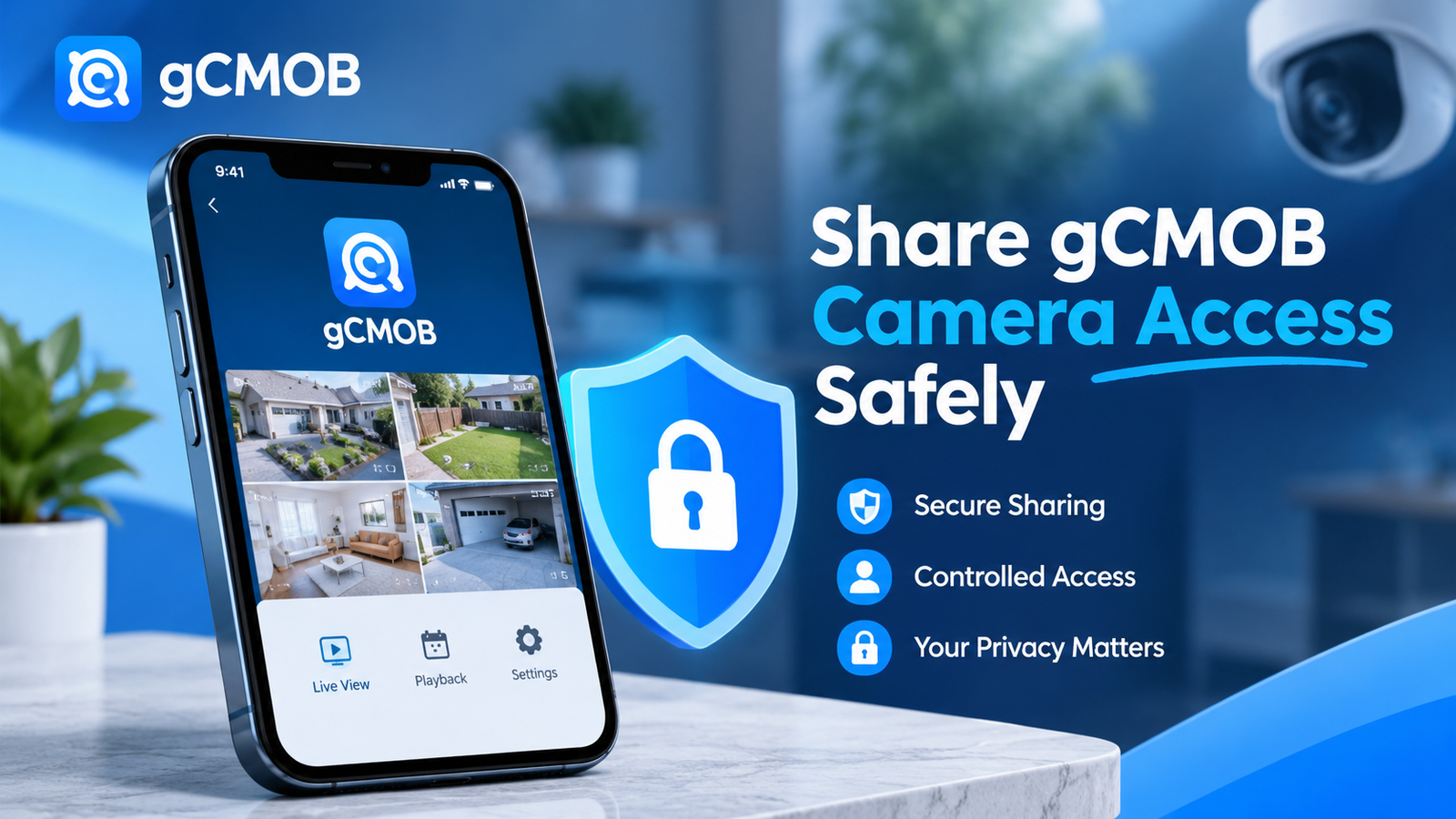
Many families and shop owners share one admin password so everyone can watch the cameras in gCMOB. It works, but anyone with that password can delete recordings, change settings or lock you out of your own DVR.
There is a better way. CP Plus recorders let you create separate users and choose exactly which cameras each person can see. Your parents can watch the gate camera, your shop staff can watch the counter, and only you keep full control.
This guide shows how to set it up in three parts: plan who needs what, create a limited user on the DVR, then add that user in gCMOB on the other person’s phone.
Short answer: Create a new user on your CP Plus DVR, tick only the cameras that person should see, then add the DVR in their gCMOB app with that new username and password.
Plan Your Users Before You Start
Write down who needs access and to which cameras before you touch the DVR. One user per person is safest, because you can remove one person later without disturbing anyone else.
Here is an example plan for an 8-camera home and shop setup:
| Person | Username | Cameras they see | Live view | Playback | Settings |
|---|---|---|---|---|---|
| You (owner) | admin | All 8 | Yes | Yes | Yes |
| Parents | family | Gate, garage, lobby, garden (CH1–CH4) | Yes | Yes | No |
| Shop staff | staff | Counter and store room (CH5–CH6) | Yes | No | No |
| Security guard | guard | All outdoor cameras | Yes | Yes | No |
Keep two rules in mind:
- Only the admin account should have settings rights. A user with settings access can change passwords and recording schedules.
- Give playback only to people who truly need to review old footage.
Step 1: Create a Limited User on Your CP Plus DVR
Users are created on the recorder, not inside gCMOB on the other person’s phone. You can do it on the DVR itself or remotely from your own gCMOB app.
Option A: On the DVR with a monitor and mouse
- Log in to the DVR as admin.
- Open Main Menu → Account (on some models System → Account or User Manager).
- Click Add User.
- Enter a username such as
family, then a strong password of at least 8 characters with letters and numbers. - Set Group to user, not admin.
- Open the permission tabs and set them to match your plan:
- Live / Monitor: tick only the cameras this person may watch, for example CH1–CH4
- Playback: tick the same cameras, or none if they only need live view
- System / Settings: leave everything unticked
- If you see a Reusable option, tick it when the same user will log in from more than one phone at once.
- Click Save.
Older CP Plus DVRs call this feature View Permission: the admin picks which channels each user can view, while the admin always sees all channels.
Option B: From your own gCMOB app
On supported recorders, gCMOB’s Remote Configuration includes a User Manager, alongside motion detection, camera and storage settings. Open your device, go to Remote Configuration → User Manager, and add the user with the same choices as above. If you don’t see User Manager, use Option A.
Step 2: Add the DVR in gCMOB on Their Phone
gCMOB cannot copy your device list to another phone, so the DVR has to be added on their phone once. Do it together, so you never have to send your admin password.
- Install gCMOB from Google Play on their Android phone. iPhone users install CP Plus’s iOS app instead (see our iCMOB guide).
- Open Device Manager and tap +.
- Choose InstaOn, the serial-number method. gCMOB also offers IP/Domain and Wi-Fi Configuration, but InstaOn needs no router setup.
- Scan the QR code on the DVR’s P2P page, or type the serial number from the sticker under the recorder.
- Give the device a name, such as Home Cameras.
- Enter the new username and password you created in Step 1, not admin.
- Tap Start Live Preview.
Test that the limits work
- Only the cameras you ticked should appear in live view.
- Try opening playback on a camera you did not allow; the DVR should refuse it.
- Try opening Remote Configuration; a user without settings rights should not be able to change anything.
If they can see more than you intended, edit the user’s permissions on the DVR and pull down to refresh in gCMOB.
Change or Remove Someone’s Access Later
Because each person has their own user, you can change one person’s access without touching anyone else’s phone.
| You want to | Do this on the DVR (Main Menu → Account) | What happens on their phone |
|---|---|---|
| Add or remove cameras | Edit the user and change the ticked channels | New cameras appear after a refresh; removed ones disappear |
| Stop playback but keep live view | Untick all channels on the Playback tab | Live view keeps working; playback is refused |
| Remove access completely | Delete the user | gCMOB shows a login error and can no longer connect |
| Pause access for a while | Change that user’s password | They are locked out until you share the new password |
When a staff member leaves, delete their user the same day. If they ever knew the admin password, change the admin password too.
Security Tips for Shared CCTV Access
Sharing access safely is mostly about keeping the admin account private and giving everyone else the least they need.
- Keep admin to yourself. Never type the admin password into someone else’s phone, even “just this once”.
- Use a different password for each user. Don’t reuse your email or banking password; CP Plus’s own security advice warns against this.
- Give minimum rights. CP Plus recommends that each user gets only the functions they need, so leave settings unticked for everyone except admin.
- Turn on app protection. In gCMOB, the Protection option adds a password that must be entered every time the app opens. This protects your cameras if a phone is lost or shared.
- Prefer InstaOn over port forwarding. Serial-number access keeps your DVR off the open internet.
- Review users every few months. Delete anyone who no longer needs access.
- Respect privacy. Let family and staff know which areas are recorded, and don’t share cameras that cover private rooms.
Frequently Asked Questions
Can I share only some cameras in gCMOB?
Yes. Create a separate user on the CP Plus DVR and tick only the channels that person may watch. gCMOB then shows them only those cameras.
Can I share gCMOB access without giving my password?
Yes. Give them their own username and password created on the DVR. Your admin password stays private.
Can I copy my gCMOB device list to another phone?
No. gCMOB has no import or export of settings between phones, so the DVR must be added on each phone once.
How many people can watch the same DVR at once?
It depends on the recorder model and your upload speed. Each viewer adds load, so use the sub stream for remote family members.
Can a shared user delete my recordings?
Not if you leave the system and storage rights unticked. Only give those rights to the admin account.
Can I see who is logged in to my DVR?
Most CP Plus recorders keep a log of logins and actions. Check the DVR’s system log under Main Menu → Info or Log.
What if someone forgets the password I gave them?
Log in as admin and set a new password for their user. gCMOB cannot reset DVR passwords; that is done on the recorder.
Does this work for iPhone users?
Yes. The user is created on the DVR, so it works with CP Plus’s iOS app as well as gCMOB on Android.